WhatsApp Business Web: How to Use It on Your Computer and With Your Team
Learn how to open WhatsApp Business Web on your PC with a QR code, where it falls short for teams, and how to add automation and an API. Try it free.

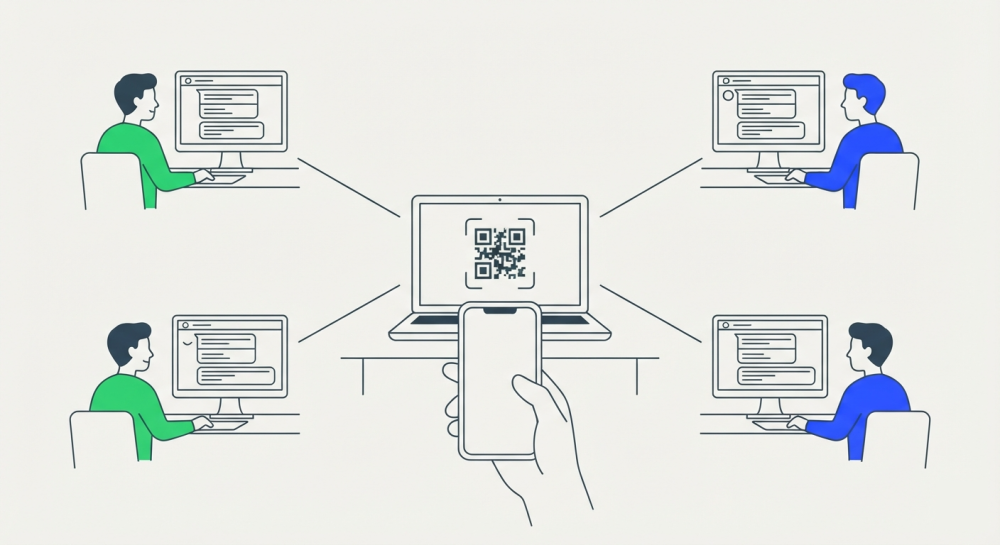
WhatsApp Business Web lets you use your WhatsApp Business account from a computer browser. You go to web.whatsapp.com, scan a QR code with your phone, and your chats show up on screen. It's free and it works well for one person. Once several people answer the same number, it starts to fall short, and that's when a shared inbox makes sense.
Is your team already answering one WhatsApp number from several computers?
2Chat connects to your number with a QR code, the same way WhatsApp Web does, and adds a shared inbox, automation, an API and integrations on top of that connection.
Try 2Chat free for 7 days, no card required.
What is WhatsApp Business Web?
WhatsApp Business Web isn't a separate product or a different account. It's your WhatsApp Business app linked to a browser. The messages, contacts and labels are the same ones you see on your phone.
There's no special address for the Business version either. The WhatsApp Business Web login happens at web.whatsapp.com, same as a personal account. What changes is the account you scan with: scan from the WhatsApp Business app and your business account opens.
How to open WhatsApp Business Web on your computer
You can log in two ways: with a QR code or with your phone number. The QR code is faster.
With a QR code
- On your computer, open a browser and go to web.whatsapp.com. You'll see a QR code.
- On your phone, open the WhatsApp Business app.
- Tap the three dots (Android) or Settings (iPhone) and open Linked devices.
- Tap Link a device and confirm with your fingerprint, face or PIN if asked.
- Point the camera at the QR code on the screen.
Your chats load in a few seconds. The QR code refreshes every so often, so if it stops working while you're getting your phone out, reload the page and scan the new one.
With your phone number (no QR scan)
This helps when your phone camera is broken or won't focus.
- On web.whatsapp.com, choose the option to log in with a phone number.
- Enter the number on your WhatsApp Business account. The page shows an 8-character code.
- On your phone, go to Linked devices, tap Link a device, then Link with phone number instead.
- Type in the code from your computer.
Either way, you need the phone nearby the first time. There's no username and password login.
WhatsApp Business for PC: browser or desktop app?
Besides the browser, there's a WhatsApp app for Windows and Mac. It links the same way, with the same QR code, and it opens your Business account too.
If you talk to customers all day from the same machine, the desktop app is more comfortable. For a quick session on another computer, the browser is enough.
What you can and can't do from WhatsApp Business Web
From a computer you get most of what you use every day in the app:
- Reply to chats and send files, photos and voice notes.
- Use quick replies by typing "/" in the message box.
- Sort conversations with labels.
- Share products from your catalog.
A few tasks still need the phone, like creating broadcast lists or changing some business profile settings. And there are things the web version doesn't do at all: it doesn't hand chats to specific people, it doesn't show who replied to what, and it has no reports.
Linked devices: using WhatsApp Business on multiple devices
One account supports up to four linked devices on top of the main phone. Each one works on its own, so your computer keeps receiving messages even when the phone is off or has no signal.
There's a time limit. If about 14 days go by without opening WhatsApp on the main phone, the linked sessions end and you have to scan the code again.
To see which computers have access, open Linked devices on your phone. Every session is listed with its last activity, and you can log any of them out with a tap. It's worth checking now and then, especially after someone leaves the team or after you've used a borrowed computer.
Common problems and how to fix them
The QR code won't load or won't scan. Reload the page, wipe the screen and turn up the brightness. If that doesn't help, try another browser or use the phone number option.
The session keeps logging out. The usual causes are a phone that hasn't opened WhatsApp in a while, an outdated app, or someone removing the session from Linked devices.
Messages aren't syncing. Check the computer's connection and give it a moment, because the first history load can be slow. If a recent chat is missing, open WhatsApp on the phone to trigger a sync.
Can multiple users share WhatsApp Business Web?
Yes. With four linked devices, four people can have the same number open on their computers. Plenty of small businesses start this way, and at low volume it works.
The trouble starts when message volume grows. Everyone sees every chat, but nobody knows who picked up which one. Two people answer the same customer with different prices. Another chat sits read and unanswered because each person assumed someone else had it.
You can't measure anything either. How long does the team take to reply? Who closed the most sales this week? WhatsApp Web doesn't track that per person, because as far as the app is concerned everyone is the same account.
A WhatsApp team inbox: one number for the whole team
A WhatsApp team inbox (also called a shared inbox) gives you one number, several users with their own login, and an owner for every conversation. Anyone who logs in can see which chats are theirs, which are unassigned, and what a teammate already said.
2Chat does this with a connection that works a lot like WhatsApp Web. You scan a QR code from the app, 2Chat shows up as one more linked device, and your number keeps working on your phone as usual. You don't need a Meta Business account or verification to get started.
The difference is what you can do on top of that same connection:
- Shared inbox. Each person logs in with their own user, and you can assign a conversation to an agent or a team.
- No-code automation. A visual editor for building menus, auto-replies and flows that handle the repetitive questions.
- Developer API. Send and receive messages from your own system, without anyone keeping a tab open.
- Integrations. Connect WhatsApp to HubSpot, Zapier, Make, n8n or Google Sheets. If you sell over chat, the HubSpot integration puts every conversation in your WhatsApp CRM.
- Groups and voice note transcription. Manage groups from the platform and turn voice notes into text.
You'll find the full list on the WhatsApp for teams page.
One thing to keep straight: this isn't the same as running several WhatsApp numbers on one phone. This is the opposite case, one number answered by several people.
WhatsApp Business Web, QR connection or API: which one fits?
If bulk sends are part of your plan, or you don't want to depend on a phone staying active, look at the WhatsApp Business API and what it costs. For day-to-day customer conversations, the QR connection is usually enough and takes minutes to set up.
How to connect WhatsApp Business to 2Chat
You need an administrator user in 2Chat and the phone with the app at hand.
- Go to Channels > WhatsApp and click New WhatsApp Connection.
- Choose QR (like WhatsApp Web) and accept the requirements.
- Enter the number in international format and a name for the channel. Turn on contact importing if you want it.
- Click Add & Connect and scan the code from Linked devices on your phone.
- Once the channel shows as Active, you can invite your team.
Every screen is covered in the guide on how to create a WhatsApp connection. If someone else has the phone, you can share a QR link instead: they open it in their browser and scan the code without needing a 2Chat account.
Because it's the same kind of session as WhatsApp Web, the same care applies. Open the app on the phone at least once a week and keep it updated to keep your connection from disconnecting.
Want to try it with your own number? Create your account and connect WhatsApp or check the 2Chat plans.
Frequently asked questions
- Is WhatsApp Business Web free?
Yes. Using WhatsApp Business in a browser or in the desktop app costs nothing. You only need an active account in the WhatsApp Business app. - Does it work when my phone is off?
Yes. Once linked, the computer sends and receives messages without the phone being on. If the phone goes about 14 days without opening WhatsApp, the session ends and you have to link it again. - How many people can use WhatsApp Business Web at once?
Up to four linked devices, plus the phone. Everyone sees the same chats and there's no way to assign them, so teams are better off with a shared inbox. - Can I log in to WhatsApp Web without a QR code?
Yes. On the login screen, pick the phone number option and type the 8-character code from the page into the app. You still need the phone to confirm it. - Can I use WhatsApp and WhatsApp Business on the same PC?
Yes. Open each account in a different browser profile, or use one in the browser and the other in the desktop app. Each session links with its own QR code. - Is it safe to stay logged in?
On your own computer, yes. On shared machines, log out when you're done and check the Linked devices list on your phone from time to time to remove access you no longer use.