How to Connect Your Business Mobile Number to 2Chat Using Call Forwarding (No porting needed)
Learn how to easily enable call forwarding on your mobile device to your 2Chat virtual number. Streamline your business calls and improve your customer support.


As a digital marketer, startup founder, or entrepreneur, you already know that every single phone call from a customer is a potential growth opportunity. However, manually handling incoming calls while trying to run your daily operations can quickly become overwhelming.
What if there was a way to route calls made to your personal or traditional mobile number directly to your professional virtual business line?
By enabling call forwarding on your mobile device, you can redirect customer calls directly to your 2Chat virtual number. This simple integration allows you to leverage 2Chat’s powerful suite of features, ensuring your customers are attended to promptly and professionally, all without porting your actual phone number.
Running a business shouldn't mean drowning in missed calls, scattered chats, and clunky phone setups. With 2Chat, your team gets a single, smart phone number that handles voice calls and WhatsApp messaging in one place — no hardware, no headaches. Set up intelligent IVR flows that greet callers, route them to the right person, and keep the experience feeling polished and professional, whether you're a two-person startup or a growing support team. Need a local number in over 90 countries? Done in minutes. Want calls logged automatically in HubSpot or handed off to an AI voice agent? That's built in too. It's the modern phone system your business actually deserves and your customers will notice the difference.
In this quick, practical tutorial, we will walk you through exactly how to set up and disable call forwarding on your mobile device.
Part 1: How to Enable Call Forwarding to 2Chat
Setting this up only takes a couple of minutes. Grab your smartphone and follow these simple steps:
Step 1: Open Your Phone App
First, unlock your mobile device and open the default Phone or dialer application (the app you normally use to make calls).
Step 2: Access the Settings Menu
- Tap on the menu icon (usually represented by three vertical dots or a gear icon) in the search bar or top-right corner.
- Select Settings from the dropdown options.
Step 3: Find Calling Accounts
- Scroll down the settings menu until you find Calling accounts (on some devices, this might be labeled as "Call settings" or "Carrier services").
Tap on it to open the network-related options.
Step 4: Choose Call Forwarding
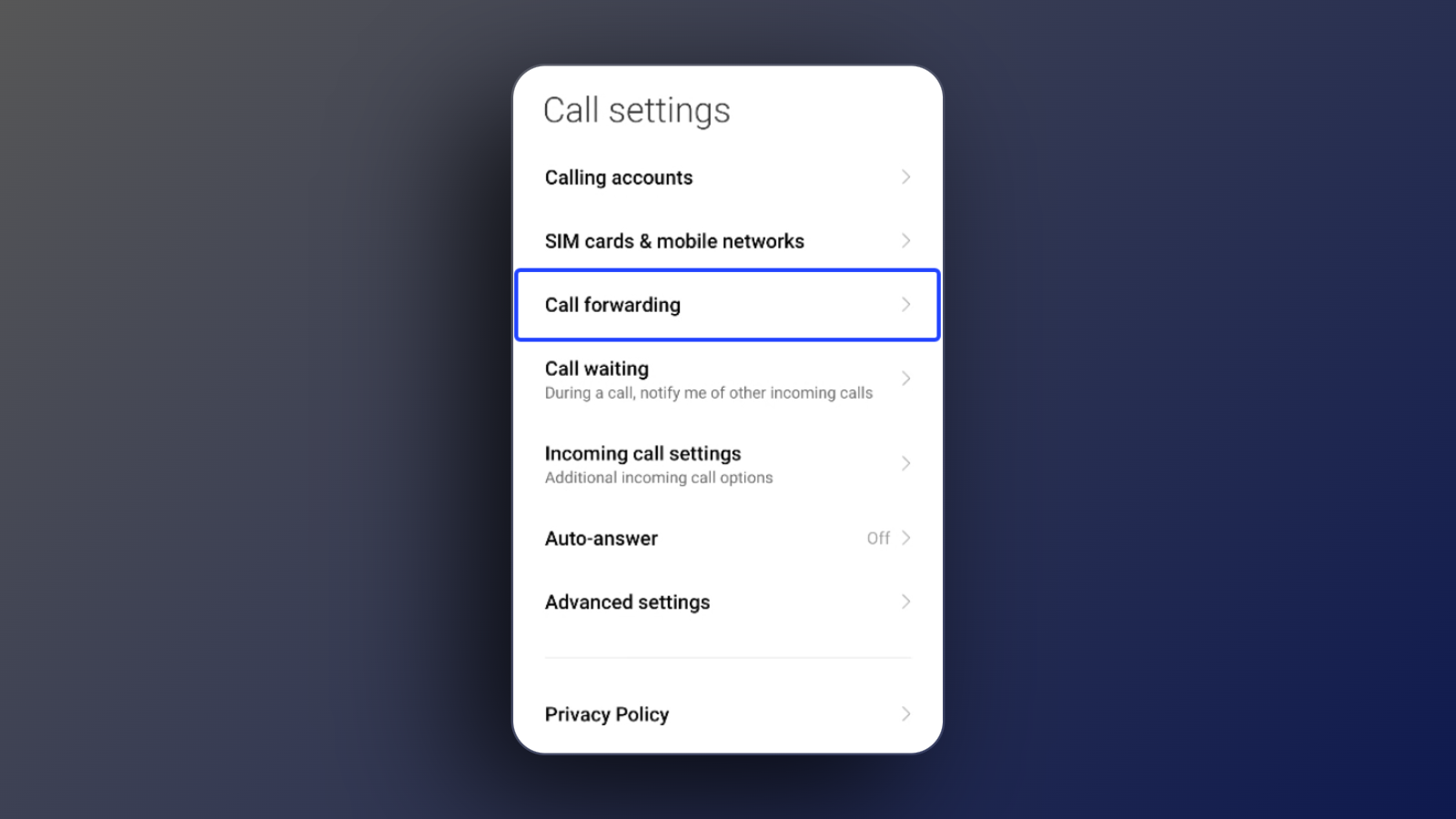
- Inside the calling accounts menu, look for and select Call forwarding.
- Select the SIM card you want to forward calls from (if you have a dual-SIM phone). The system will take a few seconds to retrieve your current operator settings.
Step 5: Configure "Always Forward"
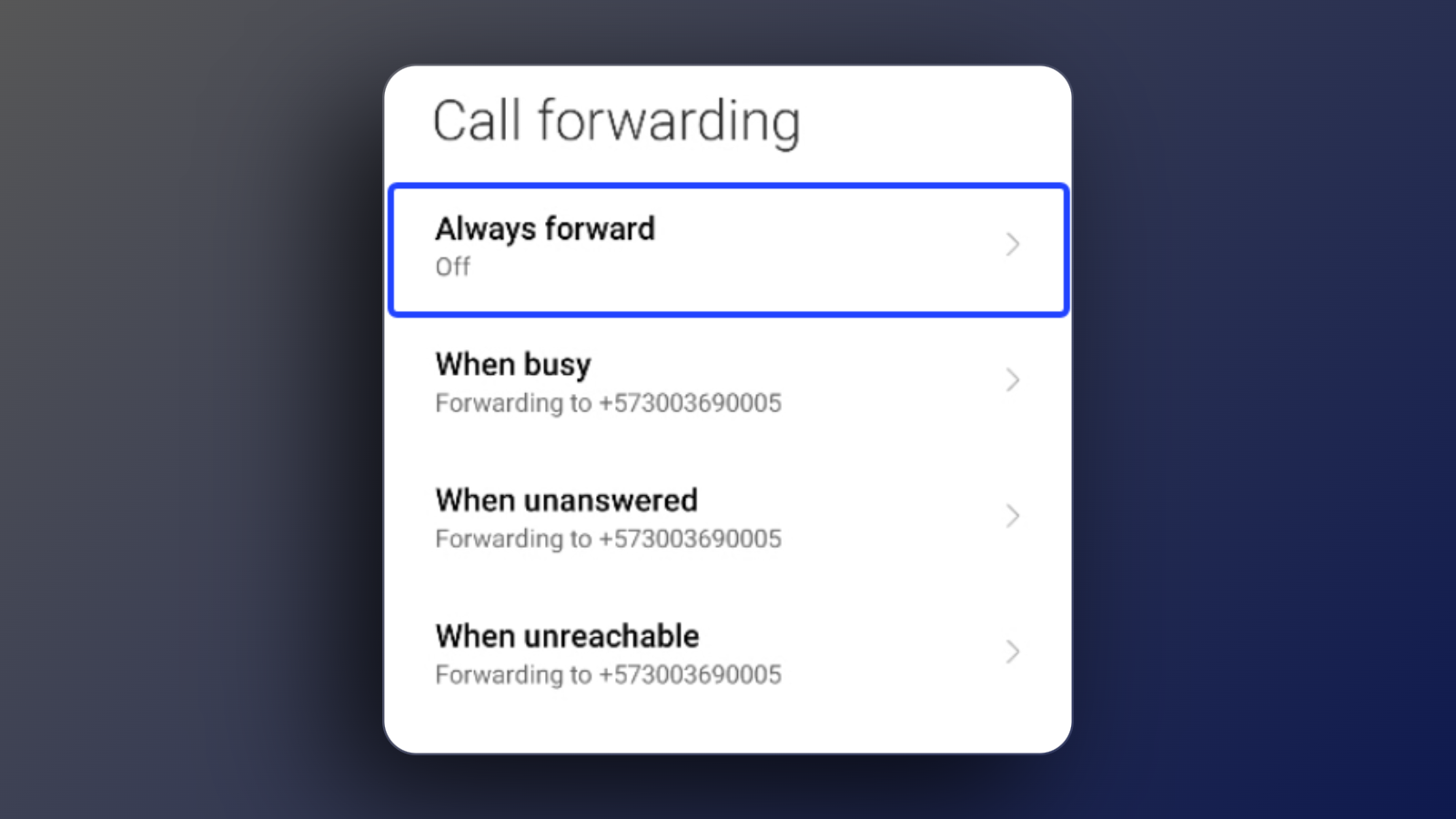
You will see several options (Always forward, When busy, When unanswered, When unreachable).
- Tap on Always forward.
- A pop-up box will appear asking for a phone number. Type in the virtual phone number you have registered and set up in your 2Chat account. Make sure to include the correct country code.
- Tap Turn on (or Update).
- The device will update your carrier settings. Once loaded, all incoming phone calls to your mobile number will automatically redirect to your 2Chat virtual line, allowing you to handle them seamlessly.
Part 2: How to Disable Call Forwarding
If you ever need to turn this feature off—perhaps during holidays, after business hours, or if you want to resume taking calls directly on your mobile device—reversing the process is just as easy.
Step 1: Return to Call Forwarding Settings
Go back to your Phone App > Settings > Calling accounts > Call forwarding (just like you did in Part 1).
Step 2: Select "Always Forward"
Once the device finishes reading your carrier settings, tap on the Always forward option (which will currently show the 2Chat forwarding number you entered earlier).
Step 3: Turn Off the Forwarding
- A menu will pop up with your forwarded number.
- Tap on the Turn off button.
Your phone settings will quickly update, and your incoming calls will immediately route back to your physical mobile device.
Key Takeaways for Entrepreneurs
- Improved Customer Experience: Your clients are routed to your professional business channels immediately, without them needing to save a different phone number.
- Work-Life Balance: You can turn forwarding on during your working hours to keep business conversations inside 2Chat, and easily disable it when you are off the clock.
- Unified Communication: Combining standard mobile calls with 2Chat's virtual environment ensures you keep clean, organized records of your customer interactions.
Are you ready to elevate your customer support and leverage the true power of WhatsApp for your business? Sign up for a 2Chat account today and take control of your customer conversations!