What Is an MCP Server? How AI Agents Like Claude Connect to WhatsApp
What is an MCP server and how does it work with WhatsApp? See how Claude, ChatGPT, and other AI agents connect to 2Chat. Try it free.

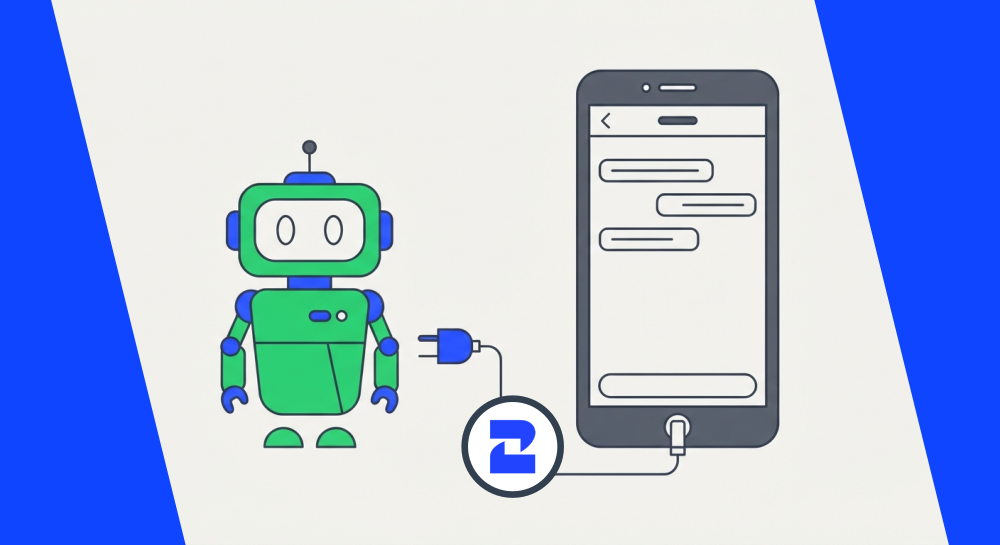
An MCP server is a standard way for an AI agent like Claude or ChatGPT to use tools outside its own chat window, in this case, sending a WhatsApp message, looking up a contact, or placing a call. 2Chat's MCP server plugs your WhatsApp, SMS, and voice number directly into the AI tools your team already uses, no proxy server or custom integration code required.
If that still sounds abstract, you're not alone. Most people run into "MCP" for the first time through a product announcement, not a clear explanation. Here's what it actually means for a business that talks to customers over WhatsApp.
What Is an MCP Server, in Plain English
MCP stands for Model Context Protocol, a standard that lets an AI model ask an outside system to do something on its behalf, then use the result to keep working. Think of it as a shared language between an AI agent and a piece of software, so the AI doesn't need a custom-built bridge for every tool it touches.
Before MCP, connecting an AI assistant to something like WhatsApp usually meant a developer wiring up a custom integration, or routing everything through a no-code platform as a middle step. An MCP server skips that. You point your AI client at the server, authenticate, and the tools it exposes show up as things the AI can just use.
For 2Chat specifically, that means Claude, ChatGPT, or any other MCP-compatible client can read a contact's history, send a WhatsApp message, or check a call log the same way it would look something up on the web, through a direct request instead of a workaround.
How 2Chat's MCP Server Connects AI Agents to WhatsApp, SMS, and Voice
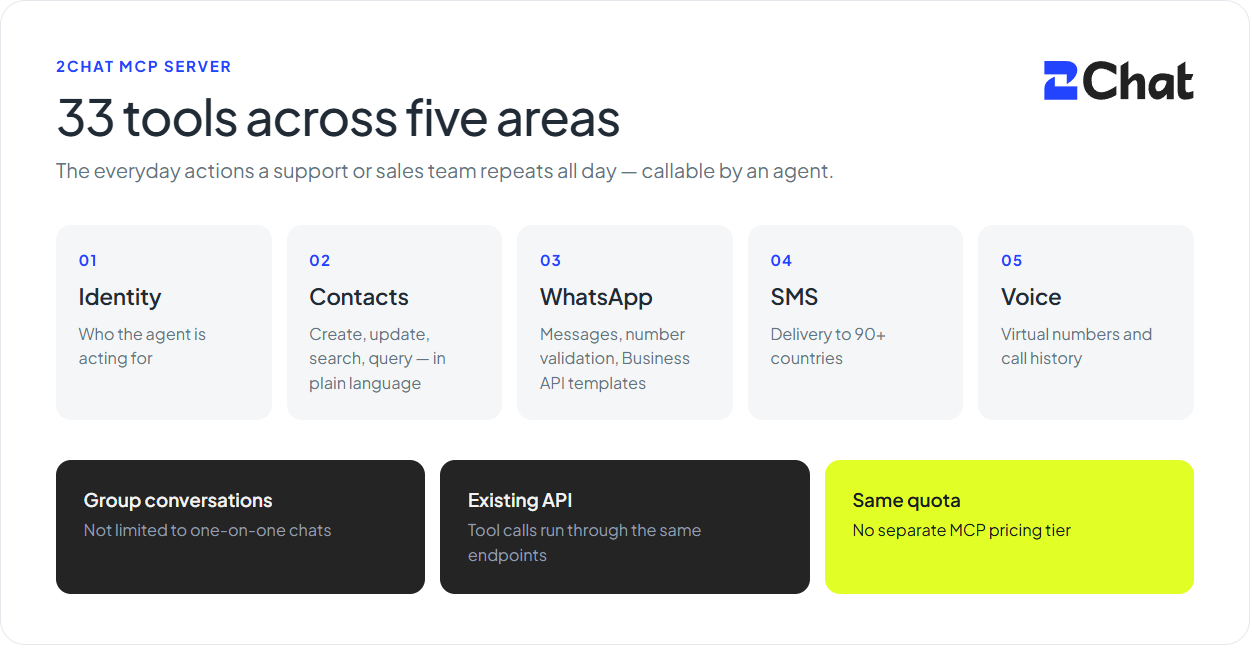
2Chat's MCP server exposes 33 tools across five areas: identity, contacts, WhatsApp, SMS, and voice. In practice, that covers the everyday actions a support or sales team repeats all day: full contact management (create, update, search, and query contacts using plain language, not a filter menu), sending and retrieving WhatsApp messages, validating whether a number is on WhatsApp, managing WhatsApp Business API templates, sending SMS to more than 90 countries, and pulling virtual number and call history.
Group conversations are covered too, so an agent isn't limited to one-on-one chats. And because everything runs through 2Chat's existing API, tool calls draw from the same quota as your regular plan. There's no separate MCP pricing tier to worry about.
If you'd rather set some of this up by hand first, the help center has plain guides for adding an SMS channel and importing contacts into 2Chat, so you know what the AI agent is working with before you hand it the keys.
What Your Team Can Actually Do With It
The tools matter less than what they let a non-technical team accomplish without waiting on engineering:
- AI-powered customer support that answers on WhatsApp. A support agent connected via MCP can pull up a customer's message history, answer a routine question, and hand off to a human only when it actually needs one.
- A conversational CRM inside your chat client. Instead of opening a separate dashboard, someone on your team can ask Claude something like "find every contact who messaged us this week and hasn't gotten a reply" and get an answer straight from WhatsApp data.
- Voice and SMS automation alongside WhatsApp. The same agent that handles chat can also check a virtual number's call history or send an SMS, so you're not stitching together three separate tools for three channels.
- Multi-channel orchestration. For teams running conversational commerce flows, an MCP-connected agent can move a conversation from WhatsApp to SMS to a follow-up call without you writing a single line of glue code.
Claude, ChatGPT, and Other AI Tools You Can Connect
2Chat's MCP server works with the AI clients your team is probably already using:
- Claude (Desktop, Claude Code, and claude.ai)
- ChatGPT, through custom connectors
- n8n, for teams that want to fold WhatsApp actions into a broader workflow
- Cursor, Cline, and other MCP-compliant developer tools
If your team already asks Claude to draft emails or ChatGPT to summarize a document, connecting the same assistant to WhatsApp is closer to flipping on a setting than starting a new integration project. The setup itself is a few steps: the help center walks through connecting 2Chat to Claude, connecting 2Chat's MCP server to ChatGPT, and creating an MCP connection in n8n, depending on which client your team uses.
Do You Need to Be a Developer to Use This?
No, and that's the actual shift here. You don't need a WhatsApp Business API account set up from scratch to use the basic features, and you don't need a developer to write the connection. Most MCP clients also include tool approval controls, so your team can review what an AI agent is about to do (like sending a message) before it happens, instead of granting full access.
That said, MCP isn't the only way to connect WhatsApp to an AI tool. Some teams still prefer routing things through Zapier, Make, or n8n as a visual, no-code middle layer, and 2Chat supports that too. If you've already set up ChatGPT and WhatsApp through Make, you don't have to rebuild anything. MCP is simply the more direct route when your AI client supports it natively. And if your team does have developers who want to go deeper, the full API and setup details live in the 2Chat developer docs.
Getting Started: A Short Checklist
- Confirm your AI client supports MCP (Claude Desktop, Claude Code, claude.ai, ChatGPT with custom connectors, or another MCP-compliant tool).
- Point the client at 2Chat's MCP endpoint and authenticate. No proxy server needed. Use the Claude or ChatGPT setup guide for the exact steps.
- Review the tool approval settings in your client so you control what actions run automatically.
- Start with one use case, like automated first responses on WhatsApp, before connecting every tool at once.
- Check the MCP server feature page for the current list of supported tools and clients.
An MCP server doesn't replace your team. It gives the AI tools they're already using a direct line to the channel your customers are actually messaging you on.
Frequently Asked Questions
- Do I need a WhatsApp Business API account to use 2Chat's MCP server?
No, not for the basic features. You can start using 2Chat's core WhatsApp tools through MCP without setting up a full WhatsApp Business API account first. - Is MCP included in my 2Chat plan, or is it a separate add-on?
It's included in all 2Chat plans. Tool calls made through MCP consume your standard API quota, so there's no extra line item to manage. - Can I control what an AI agent is allowed to do through MCP?
Yes. Most MCP clients, including Claude and ChatGPT, offer tool approval settings, so you can require confirmation before an agent sends a message or takes another action. - What's the difference between using MCP and connecting WhatsApp through Zapier or Make?
Zapier, Make, and n8n route actions through a visual, no-code workflow builder. MCP connects your AI client directly to 2Chat's tools, without that middle layer, which is usually faster to set up if your AI client already supports it. - Which AI tools work with 2Chat's MCP server today?
Claude (Desktop, Claude Code, and claude.ai), ChatGPT through custom connectors, n8n, Cursor, Cline, and other MCP-compliant clients. - Is there a free way to try it before committing?
Yes, 2Chat offers a free trial so you can test the MCP toolset before deciding on a plan.