How to summarize a WhatsApp group chat with AI (Claude or ChatGPT)
Summarize a WhatsApp group chat with Claude or ChatGPT, with no export or copy-paste. Setup steps, 7 prompts for dispatch teams and the limits to know

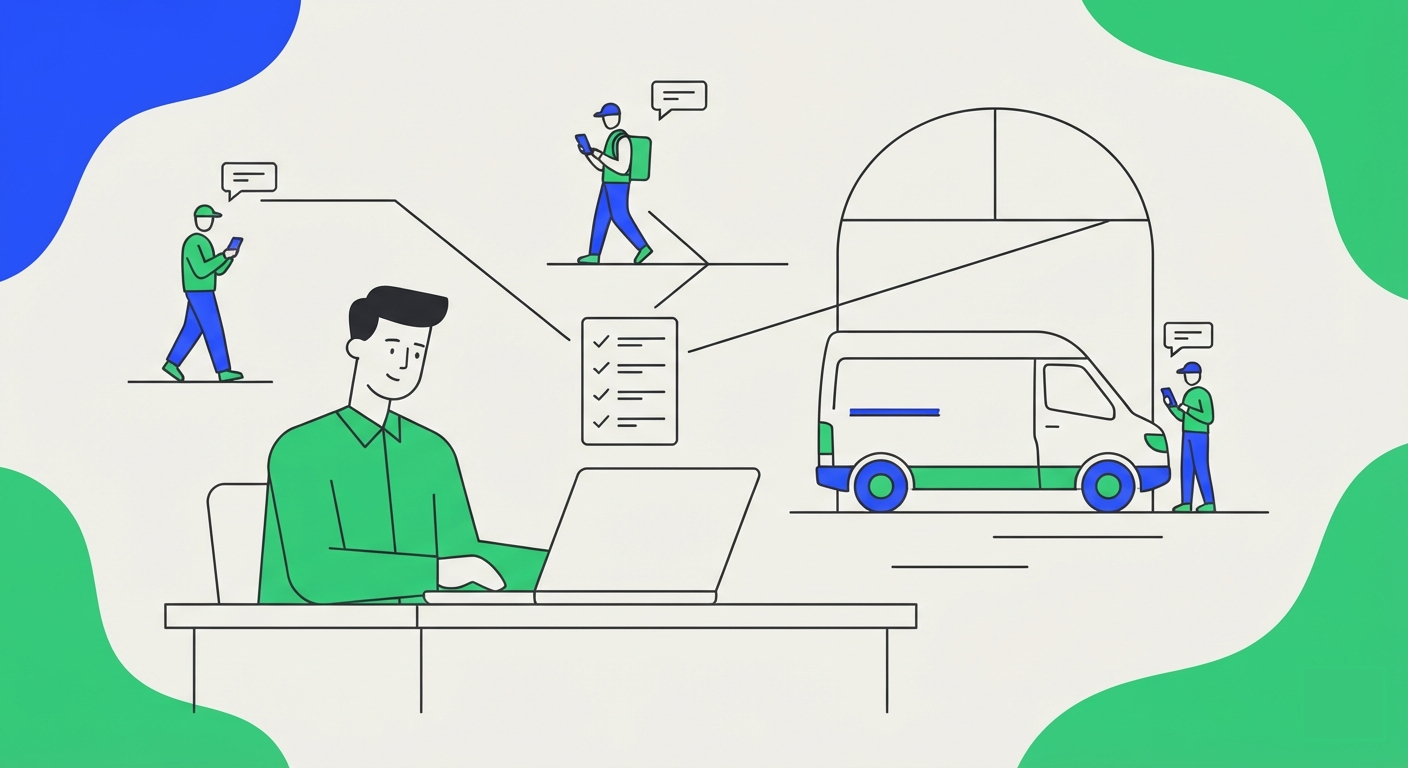
To summarize a WhatsApp group chat with AI, connect your WhatsApp number to 2Chat, add the 2Chat MCP server to Claude or ChatGPT, and ask in plain words: "Summarize today's messages in the dispatch group." The assistant reads the group's messages itself, so you don't export or paste anything. Setup takes a few minutes. After that, catching up on a group is one question.
The examples below follow a dispatch team with several driver and customer groups. The same steps work for a construction crew, a sales team or a chain of restaurants.
Can WhatsApp summarize a group chat by itself?
Partly. WhatsApp has a feature called Message Summaries that uses Meta AI to give you a private summary of the unread messages in a chat. It's optional, nobody else in the chat sees that you used it, and WhatsApp began rolling it out in June 2025, starting in the US. If you have it, it's a good way to catch up on one busy chat on your own phone.
A team runs into its limits quickly:
- It covers unread messages in the chat you have open. You can't ask about yesterday, or about three groups together.
- The summary is only for you. Your shift lead or your manager gets nothing.
- You can't ask a specific question, such as "which deliveries failed?" or "what did nobody answer?".
Why does copying and pasting a chat into ChatGPT stop working for a team?
The usual workaround is to export the chat from WhatsApp and paste it into ChatGPT. For one long conversation, once, that's fine.
It breaks down as a routine. Every export is a snapshot of one group at one moment, long chats have to be pasted in pieces, and tomorrow you start again. With six dispatch groups, that's a daily chore, and daily chores like this one get dropped by the second week.
When the assistant can read the groups directly, the chore goes away. You ask, it fetches the messages, and you get the answer.
What do you need?
- A 2Chat account with your WhatsApp number connected. You connect by scanning a QR code, with regular WhatsApp or WhatsApp Business. You don't need a WhatsApp Business API account. There's a free 7-day trial, no card required.
- Claude or ChatGPT.
- The 2Chat MCP server. MCP (Model Context Protocol) is an open standard that lets an AI assistant use outside tools, in this case your 2Chat account. The 2Chat MCP server is included in every plan. If the idea is new to you, our guide on what an MCP server is covers it.
How do you connect your WhatsApp groups to Claude or ChatGPT?
1. Connect your number to 2Chat
Create your account, add a WhatsApp channel and scan the QR code with the phone that's in your work groups. The first sync of your WhatsApp groups in 2Chat can take between 5 and 30 minutes.
2. Add 2Chat to Claude
- In Claude, go to Settings > Connectors.
- Click Add custom connector.
- Paste the URL
https://mcp.2chat.io/mcp. - Click Connect, then Allow Access in the browser tab that opens.
3. Or add 2Chat to ChatGPT
ChatGPT needs Developer Mode turned on before it accepts a custom MCP server.
- Go to Plugins, click Add, then Add custom MCP Server and Create App.
- Give it a name, paste
https://mcp.2chat.io/mcpas the MCP Server URL and choose OAuth as authentication. - Log in to 2Chat in another tab, then click Create as plugin.
- Click Connect next to the new plugin, then Allow Access.
To use it in a conversation, type @ and pick 2Chat. Step-by-step screenshots are in connect 2Chat to ChatGPT.
4. Check that it works
Ask: "List my WhatsApp groups on 2Chat." You should get the names of your groups and how many members each has. If the list is empty, the first sync is probably still running.
7 prompts to summarize a dispatch group
Copy these and swap in your own group names. Short time windows work best, for a reason explained in the next section.
- The daily catch-up. "Summarize today's messages in the group 'Dispatch North'. Put problems first, then confirmed deliveries, then everything else."
- Open questions. "In 'Dispatch North', list every question a driver asked today that nobody answered. Include who asked and at what time."
- Failed and late deliveries. "From today's messages in 'Dispatch North', list each delivery reported as late or failed, with the driver's name, the time and the reason given."
- Photos and documents. "Which photos and PDFs were shared in 'Dispatch North' today? For each one, tell me who sent it and what it shows."
- Slow replies to a customer. "In the group 'Customer: weekly orders', find the customer questions from the last two days that waited more than 30 minutes for a reply. Show who replied and how long it took."
- Several groups at once. "Summarize today in 'Dispatch North', 'Dispatch South' and 'Night shift'. Give me three lines per group and tell me which one has the most open issues."
- The shift handover. "Write a five-line end-of-shift note from today's messages in 'Dispatch North' that I can paste to the next shift lead."
What can and can't the AI see?
It pays to know the limits before you promise your manager a report. These come from the 2Chat MCP documentation and from our own test on a real group.
- Only messages from after you connected. History from before the day you linked your number to 2Chat isn't available. Connect today and everything from then on can be summarized.
- Which groups appear. The documentation says the list includes the groups your number joined after it was connected.
- 50 messages per request, newest first. A busy group can pass that in an hour, and the assistant has to ask for more pages to go further back. That's why "today" or "the last 100 messages" works better than "the whole month".
- Sender and time come with every message. That's what makes "who asked", "who replied" and "how long did it take" answerable.
- Photos and PDFs arrive as a link the assistant can open. Claude and ChatGPT can read them from there. Voice notes depend on whether your assistant has audio turned on.
- It reads groups. It doesn't post to them. The MCP server has no tool to send a message to a group, so the summary stays with you until you share it.
- Usage counts. MCP calls use the same quotas as the rest of the 2Chat API. See pricing for your plan.
An AI summary can also miss a detail or misread a short message. For anything involving money or safety, open the original message before you act.
How do you get a daily summary without asking?
If you want the summary waiting for you each morning, build it in n8n. The Help Center explains how to create an MCP connection in n8n: you add an AI Agent node, attach the MCP Client Tool with the 2Chat URL and pick the tools it may use. For this job, the two group tools are enough: list groups and get group messages.
The guide starts the workflow from a chat message. Swap that for a schedule, give the agent one of the prompts above and send the result to your email or to Slack.
Two related guides for the same groups: back up group files to Google Drive so delivery photos don't live only in the chat, and build a group analytics dashboard if you'd rather see numbers than text. For more ideas by role, see WhatsApp for logistics companies.
FAQ
- Can ChatGPT read my WhatsApp group chats?
Not by itself. ChatGPT needs a connector that gives it access, such as the 2Chat MCP server. Once it's connected, you ask in the conversation and ChatGPT fetches the group's messages. - Do group members see that I summarized the chat?
No. The summary is written in your assistant and nothing is posted to the group. It's still good practice to tell your team that work groups are connected to 2Chat. - Can it summarize messages from before I connected my number?
No. Only messages exchanged after the number was connected to 2Chat are available. If you need an older conversation, exporting that chat from WhatsApp is still the way. - Do I need the WhatsApp Business API?
No. A regular WhatsApp or WhatsApp Business number connected by QR code is enough to read and summarize groups. - Can it summarize photos, PDFs and voice notes?
Photos and PDFs, yes. They reach the assistant as a link it can open. Voice notes depend on the audio options turned on in Claude or ChatGPT. - Does it work in Spanish or other languages?
Yes. Ask in the language you want the summary in, even if the group writes in another one.
Start with one group
Pick your noisiest group, connect your number and ask for today's summary. Try 2Chat free for 7 days, no card required.