How to Build a WhatsApp Group Analytics Dashboard with Looker Studio and 2Chat
Learn to track your WhatsApp group growth with data. This step-by-step tutorial shows you how to build an automated analytics dashboard in Looker Studio using Google Sheets and the 2Chat API. Monitor joins, leaves, and community health effortlessly.

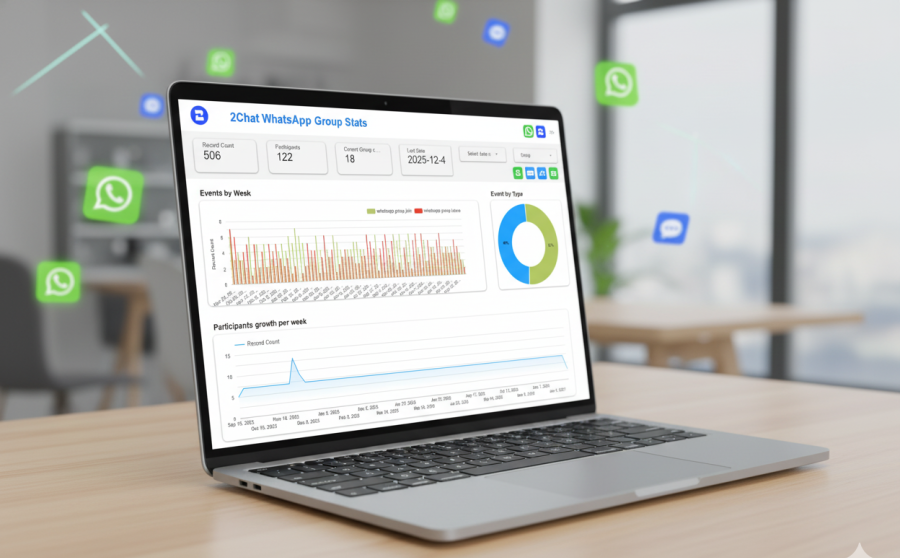
If you're using WhatsApp groups to build a community, launch a product, or keep your clients engaged, you've probably asked yourself: "Is this thing actually working? Are we growing?"
Guessing is not a strategy. To truly understand your community's health, you need data. You need to see who's joining, who's leaving, and when these changes happen. Imagine being able to see a spike in new members immediately after launching a marketing campaign or noticing a trend of people leaving at a specific time. That's powerful, actionable information.
But how do you get it without manually counting participants every day?
That's exactly what we're going to build today. In this tutorial, I'll guide you through creating a powerful, automated dashboard in Looker Studio. This dashboard will connect to your WhatsApp groups via the 2Chat API and use a simple Google Sheet to track every join and leave event automatically.
No more guesswork. Just clear, visual data to help you make smarter decisions. Let's get started!
What Your Finished Dashboard Will Look Like
Before we dive into the setup, let's take a quick tour of the dashboard you're about to create. It's designed to give you all the essential stats at a glance.
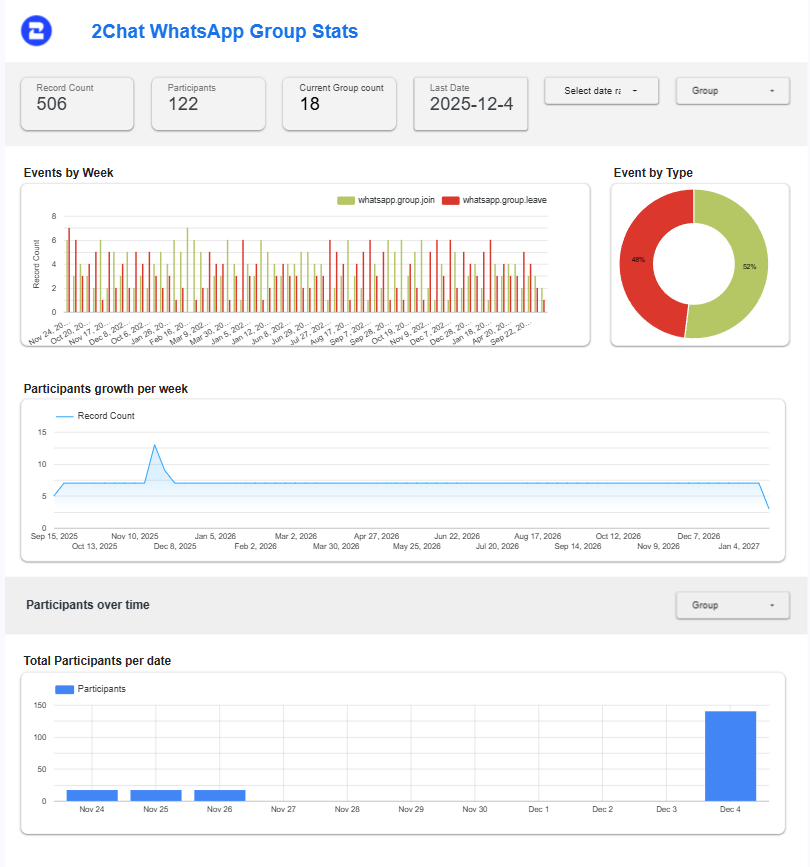
Key Metrics at the Top:
- Record Count: The total number of events (joins or leaves) that have been recorded.
- Participants: The total number of unique people who have been in your groups over time.
- Current Group Count: The number of groups you are currently tracking.
- Last Date: The last time the data was updated, so you always know you're looking at fresh information.
Visual Charts for Quick Insights:
- Events by Week: This bar chart is your go-to for weekly performance. It shows you a side-by-side comparison of how many people joined (green) versus how many people left (red) each week. You can even drill down to see this data on a daily level!
- Event by Type: This simple donut chart gives you the overall percentage split between joins and leaves. Is your community growing (more green) or shrinking (more red)? This chart tells you instantly.
- Participants' Growth Per Week: This line graph shows the cumulative growth of your community over time. It calculates the net change (joins minus leaves) each week to show you the overall growth trajectory.
- Total Participants Per Date: This chart tracks the absolute number of members across all your monitored groups daily, giving you a clear historical view of your community size.
The dashboard also includes a Details page where you can see a raw log of every single event—the date, the type of event (join/leave), the group it happened in, and the phone number involved.
Your Step-by-Step Guide to Building the Dashboard
Ready to build your own? Let's get this set up. It’s simpler than you think!
Step 1: Get the Google Sheets Template
First things first, you need a place to store your data. We've created a Google Sheets template that has all the necessary scripts and tabs already built in.
- Google Sheets Template: Open the link and click "File" > "Make a copy" to save it to your own Google Drive. This is now your master file.
Step 2: Get Your 2Chat API Key and Channel Number
Now, let's get the information we need from your 2Chat account.

- Log into your 2Chat account.
- Navigate to the Developers section in the left-hand menu.
- Under API Access, create a New API Key. Give it a memorable name like "Google Sheets Monitor" and copy the key.
- Next, go to the Channels section. Copy the Phone Number of the WhatsApp channel you want to monitor. Important: This number must be an admin in the WhatsApp groups you plan to track!
Step 3: Configure Your Google Sheet
Head back to the copy of the Google Sheet you made.
- Go to the "Parameters" tab.
- Paste your 2Chat API Key into cell A2.
- Paste your WhatsApp Channel Number into cell B2.
Step 4: Generate Your Webhook URL
This is where the magic happens. We'll use a pre-built script in the sheet to create a unique URL that 2Chat can send data to.
- In your Google Sheet, click "Extensions" > "Apps Script".
- A new window with code will open. Don't worry, you don't need to write any code!
- Click the "Deploy" button in the top right, then select "New deployment".
- A pop-up will appear. Click the gear icon next to "Select type" and choose "Web app".
Configure the settings:
- Description: Give it a name, like "WhatsApp Group Monitor v1".
- Execute as: Set this to "Me" (your Google account).
- Who has access: Set this to "Anyone".
- Click "Deploy". You may be asked to authorize permissions for the script to run. Go ahead and approve them.
Once done, it will give you a Web app URL. Copy this URL and paste it into the "Webhook URL" (cell C2) in your "Parameters" tab.
Step 5: Schedule a Daily Snapshot of Your Participant Count
While the webhook tracks individual joins and leaves, we also want to track the total number of participants each day. This gives us a historical snapshot of our group's size. We'll set up an automated trigger to do this.
- Go back to the Apps Script editor you had open.
- On the left-hand menu, click on the Triggers icon (it looks like a clock).
- Click the "+ Add Trigger" button in the bottom right corner.
- Configure the trigger with the following settings:
- Choose which function to run: Select getWhatsappGroups.
- Choose which deployment should run: Leave this as Head.
- Select event source: Choose Time-driven.
- Select type of time-based trigger: Choose Day timer.
- Select time of day: We recommend 11pm to Midnight. This will run the script once a day to log the total participant count for that day.
- Click Save.
Step 6: Set Up Webhooks in 2Chat
Now, we'll tell 2Chat to send a notification to your new URL every time someone joins or leaves a group.
- Go back to your 2Chat dashboard.
- Navigate to Developers > Webhooks.
- Click "New Webhook" and configure the first one:
- URL: Paste the Web app URL you just copied.
- Channel: Select the correct WhatsApp channel.
- Events: Find and select the event "Someone joined the WhatsApp Group".
- Click Save.
Repeat the process to create a second webhook, but this time, for the Events, select "Someone left the WhatsApp Group".
That's it! Your sheet will now automatically log every time a user joins or leaves one of your groups.
Step 7: Set Up the Looker Studio Report
The final step is to connect this data to your visual dashboard.
- Open the template and click the three dots (⋮) in the top right corner, then select "Make a copy".
- Looker Studio will ask you to choose a new data source. For each of the original sources listed, select your own Google Sheet that you just configured. You will need to connect to the GroupLog, GroupStats, and LastDates tabs, respectively.
- Click "Copy Report".
The report will now be populated with your data! It will update automatically as new events are logged in your Google Sheet.
Key Takeaways for Your Business
So, what can you do with this powerful new dashboard?
- Measure Community Health: Is your group growing or shrinking? Now you have a clear, data-backed answer.
- Track Campaign Impact: Did you run a promotion or share a link to your group? See exactly how many new members it brought in on a daily or weekly basis.
- Understand Churn: Are people leaving after a specific announcement or during quiet periods? This data helps you identify patterns so you can improve engagement and retention.
- Make Data-Driven Decisions: Instead of guessing, you can now use real metrics to guide your WhatsApp community strategy.
Managing a community is about more than just posting content—it's about understanding its pulse. With this dashboard, you've just built your very own stethoscope.
Ready to Supercharge Your WhatsApp for Business?
This tutorial is just the beginning of what you can achieve with automation. If you're ready to unlock the full potential of WhatsApp for marketing, sales, and support, it all starts with the right tools.
Sign up for your 2Chat account today and start turning your conversations into conversions!