Build Your Own WhatsApp Group Bulk Messaging App with AI
Build a custom WhatsApp bulk messaging app in minutes without writing any code. This step-by-step vibe coding tutorial shows you how to use Google's Gemini AI and the 2Chat API to automate your marketing and connect with customers at scale. Perfect for entrepreneurs and digital marketers.

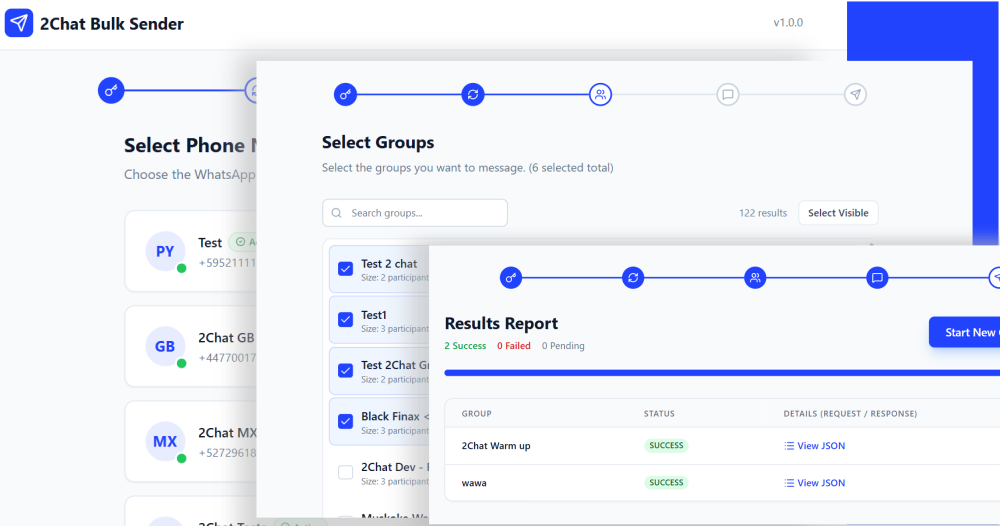
Are you looking for a way to connect with your customers on a massive scale, directly on the platform they use most? Imagine sending out a new product announcement, a special offer, or an important update to all your WhatsApp groups with just a few clicks. Sounds like a game-changer, right?
Reaching your audience directly is marketing gold. WhatsApp is a powerful channel for this, but managing bulk communications can be a huge time-sink. What if you could build your own custom tool to handle it, without writing a single line of code yourself?
That’s exactly what we’re going to do today. In this tutorial, I'll walk you through how to use the incredible power of Google's Gemini AI and the flexible 2Chat API to build a functional web application that sends bulk messages to WhatsApp groups. No coding experience? No problem! You just need to know how to ask.
Let's dive in and turn a powerful idea into a real-world tool for your business.
Your Toolkit: What You'll Need
Before we start building, let's gather our two main tools:
- The 2Chat API: Think of an API as a bridge that lets different software programs talk to each other. The 2Chat API is our bridge to WhatsApp. It’s incredibly well-documented and gives us all the functions we need—like listing our phone numbers, seeing our groups, and, of course, sending messages.
To use the API, you need a 2Chat account. Create your trial account now!
- Google AI Studio (with Gemini): This is our "developer." We're going to give Google's Gemini AI a detailed set of instructions (a "prompt"), and it will write all the code for our application for us. It’s like having an expert software engineer on call, ready to build whatever you can describe.
Step 1: Understanding the Building Blocks in the 2Chat API
First, let's get familiar with the tools 2Chat provides. If you look at the 2Chat API documentation, you’ll see it’s packed with features. For our bulk messaging app, we're interested in three key functions:
- List Numbers (/whatsapp/get-numbers): This function allows our app to find which of your WhatsApp numbers are connected and available in your 2Chat account.
- List Groups (/whatsapp/groups): Once we select a number, this function will pull a list of all the WhatsApp groups associated with that number. This is crucial for choosing our audience.
- Send Message (/whatsapp/send-message): This is the action endpoint. We'll use a specific parameter here called to_group_uuid to send our message directly to the groups we selected.
Knowing these specific functions is key because we're going to tell Gemini exactly what to use.
Step 2: Crafting the Perfect Prompt for Gemini
This is where the magic happens. We’re not writing code, but we are writing a very specific set of instructions for our AI developer. A great prompt is the secret to getting a great result.
We'll head over to Google AI Studio and go to the Build section. Here, we'll give Gemini the following prompt. Let's break it down piece by piece.
- Part 1: Give the AI a Role
We start by telling Gemini who it is. This sets the context for the entire task.You are an expert developer with UX design knowledge. - Part 2: Define the Goal
Next, we tell it exactly what we want to build. You need to create a web app focused in sending bulk messages to WhatsApp groups. The app will use 2Chat API... - Part 3: Detail the Step-by-Step Logic
Now, we outline the application's flow, referencing the specific 2Chat API calls we found earlier.
You are a expert developer with UX design knowledge. You need to create a web app focused in sending bulk email to WhatsApp groups. The app will use 2Chat API, it will ask for the API Key, next it will list the available phone nummber using a request like this:
curl -L -G 'https://api.p.2chat.io/open/whatsapp/get-numbers?page_number=0' \
    --header 'X-User-API-Key: your_api_key_here'
This is the sample response:
{
    "success": true,
    "count": 1,
    "page": 0,
    "numbers": [
        {
            "uuid": "WPN95841312-b54d-46e3-b0bc-6414f4a5296b",
            "friendly_name": "my testing number",
            "phone_number": "+595981048477",
            "iso_country_code": "PY",
            "pushname": ":v:",
            "server": "595981048477@c.us",
            "platform": "iphone",
            "connection_status": "C",
            "enabled": true,
            "is_business_profile": false,
            "channel_type": "WW",
            "sync_contacts": true,
            "created_at": "2022-10-31 22:05:44",
            "updated_at": "2022-12-01 21:40:04"
        }
    ]
}
Now, using the API Key and the selected phone number it Will list available groups using this request:
curl -L -G 'https://api.p.2chat.io/open/whatsapp/groups/+595981048477' \
    --header 'X-User-API-Key: your_api_key_here'

This is the response sample:
{
    {
    "success": true,
    "data": [
        {
            "uuid": "WAG768beeef-2b96-4bc7-9b7f-045078568723",
            "channel_uuid": "WPN95841312-b54d-46e3-b0bc-6414f4a5296b",
            "wa_group_id": "....@g.us",
            "profile_pic_url": "...",
            "wa_owner_id": "17137157533@c.us",
            "wa_group_name": "2chat test group :ok_hand:",
            "wa_created_at": "2022-10-23T17:11:41Z",
            "wa_subject": "daily motivational quotes :muscle:",
            "size": 4,
            "is_muted": false,
            "is_read_only": false,
            "channel_is_owner": false,
            "created_at": "2023-06-22T20:02:56Z",
            "updated_at": "2023-07-12T19:18:41Z",
            "owner_contact": {
                "uuid": "CON1653490d-194b-4992-8353-e4b46a64e321",
                "first_name": "Mikey",
                "last_name": "Mike",
                "channel_uuid": "WPNc568c832-606c-4d50-8092-fc51b5149d16",
                "profile_pic_url": "..."
            }
        }
    ]
The user can select several groups and now if Will use this API to send bulk messaging using this API request:
curl --location --request POST 'https://api.p.2chat.io/open/whatsapp/send-message' \
--header 'X-User-API-Key: your_api_key_here' \
--header 'Content-Type: application/json' \
--data-raw '{
    "to_group_uuid": "WAG768beeef-2b96-4bc7-9b7f-045078568723",
    "from_number": "+595981048477",
    "text": "Test from 2Chat API",
    "url": "https://uploads-ssl.webflow.com/6281a9c52303343ff7c3b269/62a1648ee0273340bf38e3a9_logo-2C.svg"
}'
The app Will list message sending result, this is a reponse sample:
{
    "success": true,
    "message_uuid": "MSG205dec10-523d-4ab3-b739-fd56e7cdeba2",
    "batched": true
}
in the results step in the detailed report in the response / error column add the full json response returned from every api request and also de request sent to the 2Chat API

Conditions:
- Avoid the API CORS error
- Use this color #2243FD as accent color with a light grey background
- The user can go to the next task and return if needed
`
Once your prompt is ready, you paste it into Gemini's build section and click "Build".
Step 3: Watch Your App Come to Life!
This is the most exciting part. Gemini will take all your instructions and, within a minute or two, generate a complete, working web application. You'll see it create the files, write the code, and assemble everything into a functional prototype.
Once it’s done, the preview screen will display your app! It starts, just as we asked, by requesting your 2Chat API key.
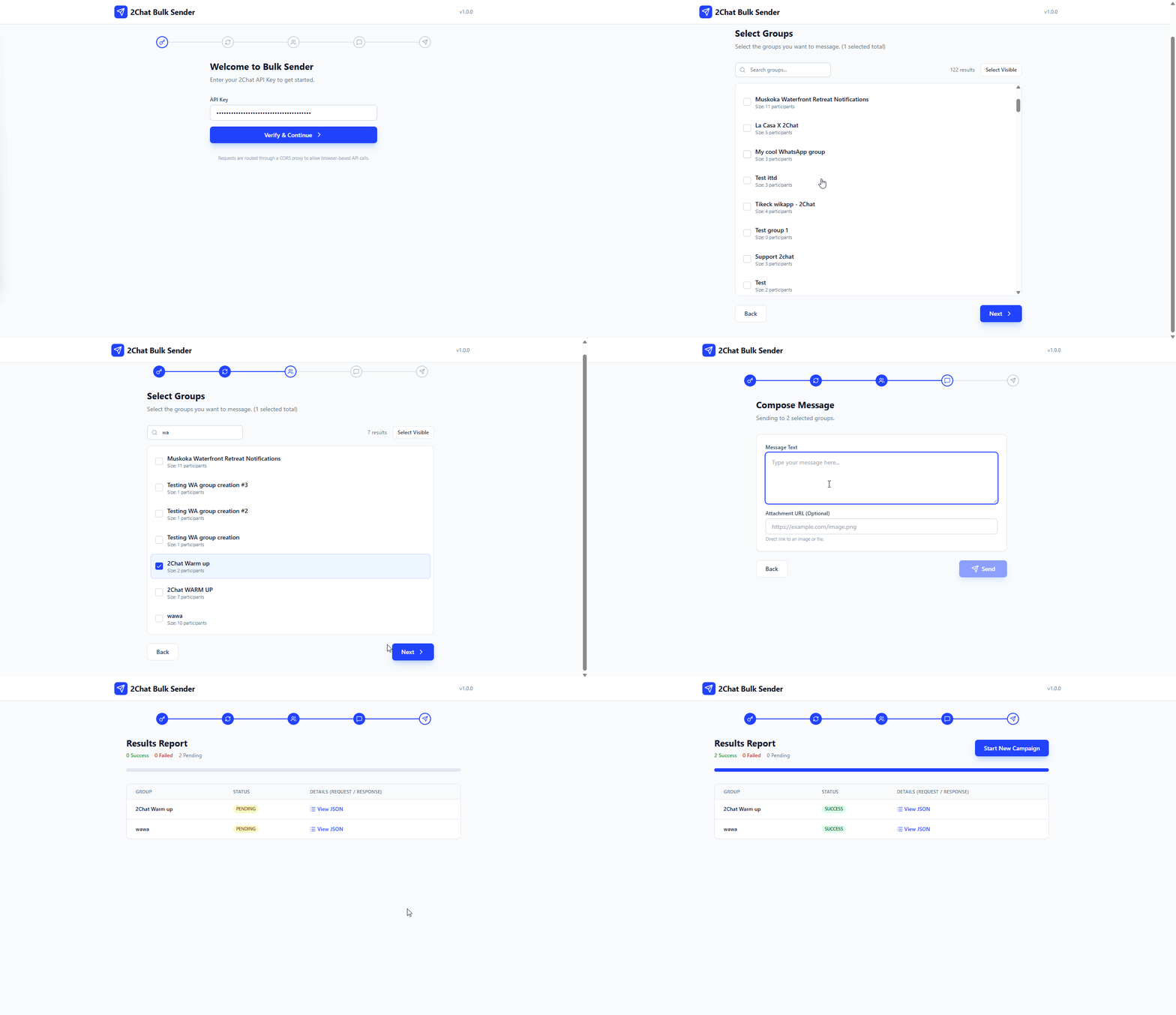
- Enter Your API Key: Grab your API key from your 2Chat dashboard (under Developers -> API Access).
- Select Your Phone Number: The app will automatically fetch and display all the numbers connected to your 2Chat account. It even shows their "Active" status!
- Choose Your Groups: After selecting a number, it will load all your WhatsApp groups. Thanks to our prompt, it even includes a search bar to help you find specific groups quickly.
- Compose & Send: Write your message, add an optional image URL, and hit "Send." The app will send your message to all the selected groups and give you a real-time report on the status of each message.
And just like that, you have a custom-built bulk WhatsApp sender!
Ready to Build Your Own?
This is just the beginning. Imagine the other tools you could build to streamline your marketing and sales processes. With the right tools and a clear idea, you can create powerful applications that give your business a competitive edge.
Ready to put this tutorial into action? The first step is getting your 2Chat API key.
Sign up for a 2Chat account today and start exploring the power of WhatsApp automation for your business!